Prevent roaming in Switzerland
There are three solutions. Each works on its own, you don't need all of them. Pick the one that suits you, then open your operating system.
Menu names can differ by manufacturer and version. The screenshots show a Pixel running Android 17.
Android
Screenshots: Pixel, Android 17Switch off data roaming
For everyone who does not want to use mobile data in the Swiss network. You do not have to choose the network yourself.
- Open Settings.
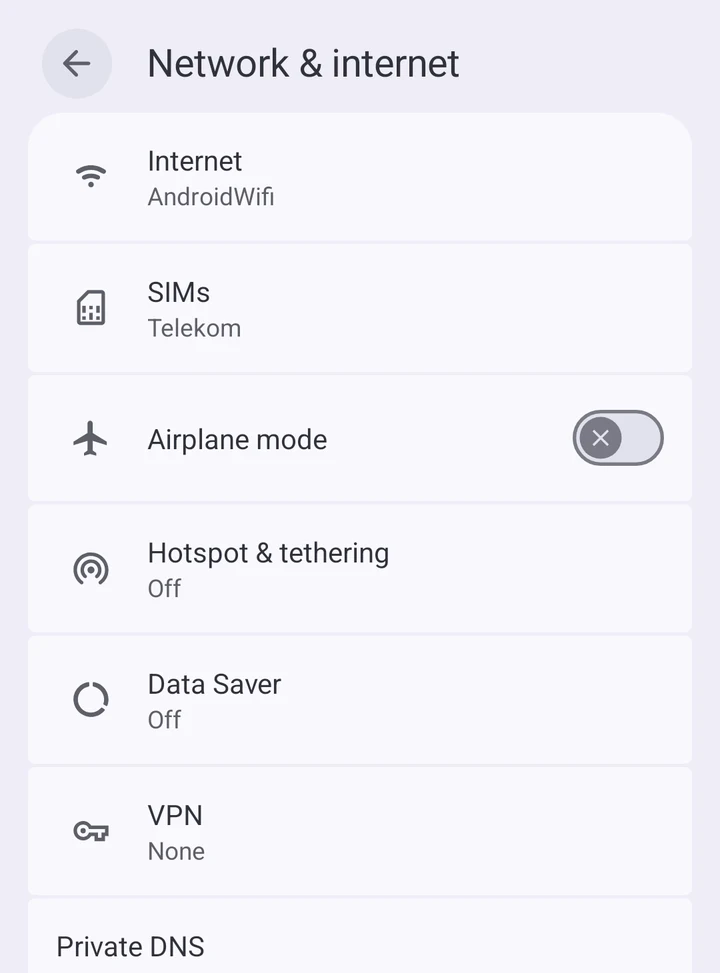
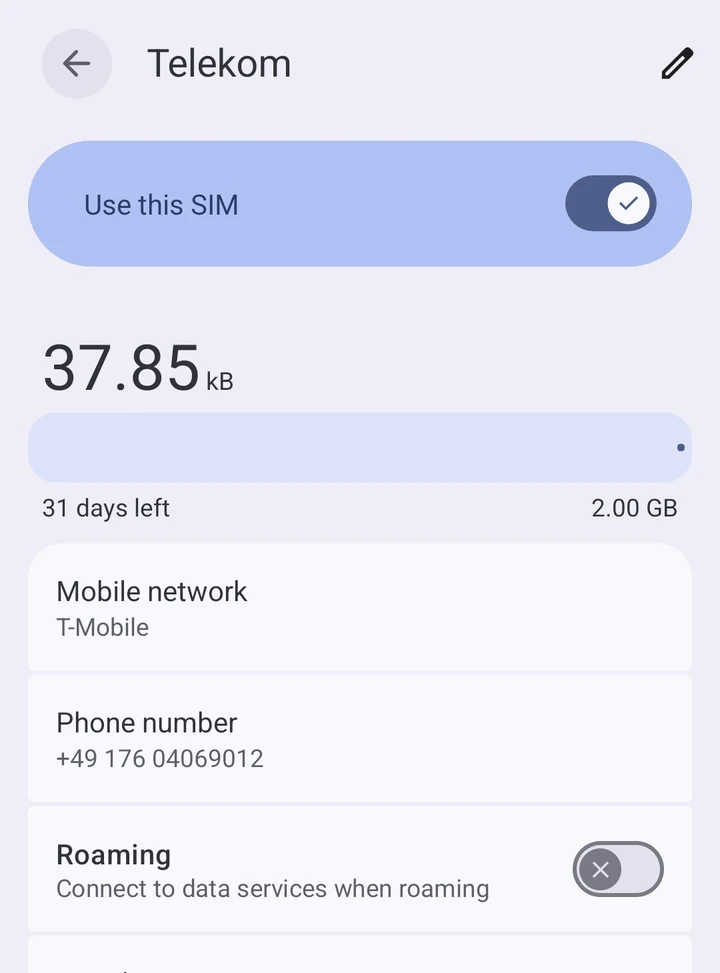
- Network & internet › SIMs, then tap your SIM.
- Switch off the Roaming toggle.
Fix your network
Your phone stays on your German or Austrian network and does not switch secretly. This also protects calls and SMS.
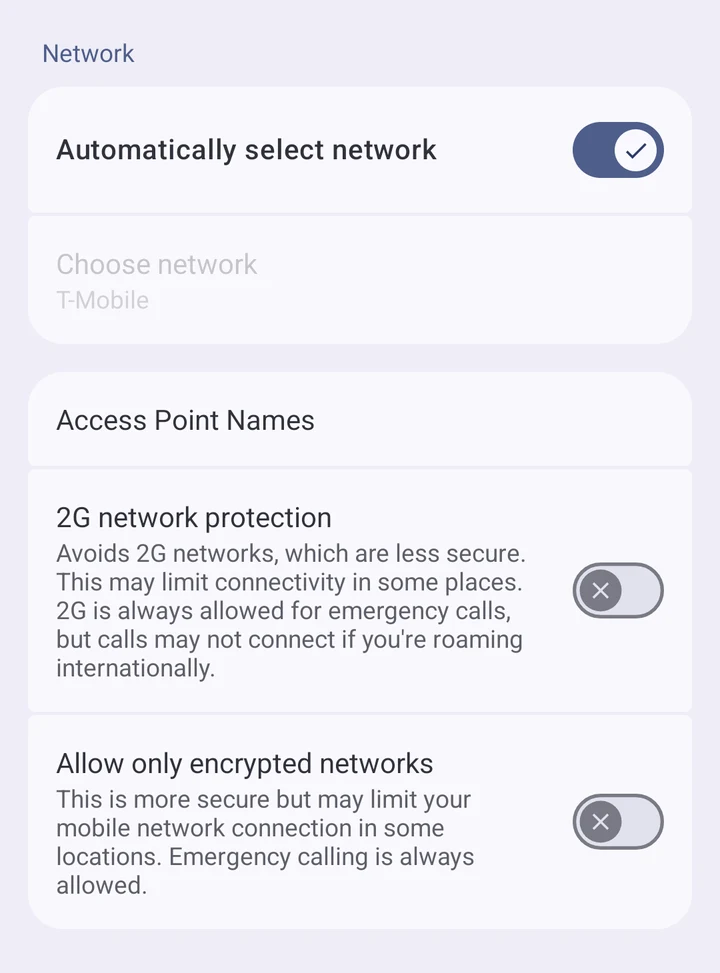
- Network & internet › SIMs, tap your SIM and scroll down to the Network section.
- Automatically select network: switch it off. A list of networks opens and the phone searches for networks.
- Tap your network, for example “Telekom.de”. Skip Swisscom, Sunrise and Salt.
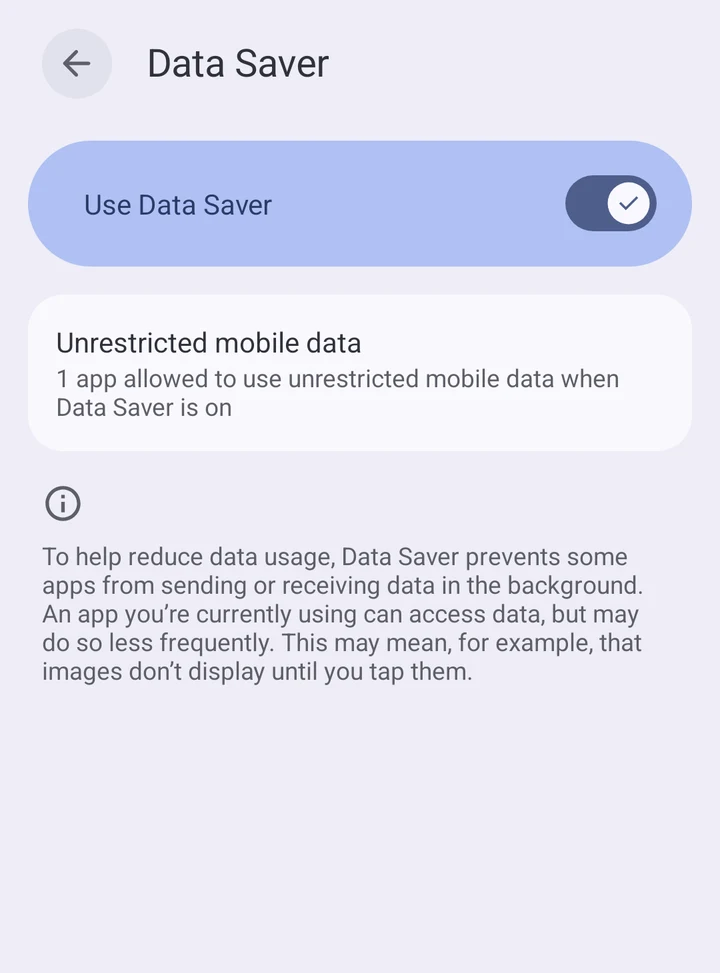
Use Data Saver
Only useful if you have booked a data pack for Switzerland. It stretches the small allowance.
- Network & internet › Data Saver: open it and switch on Use Data Saver.
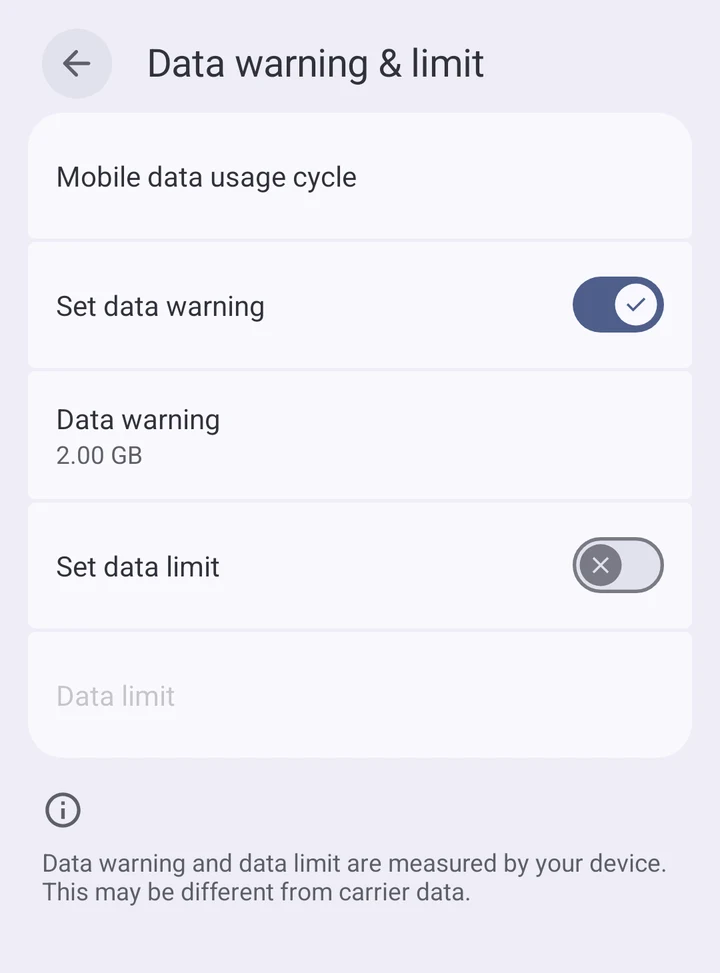
- Also open Data warning & limit in the SIM details, switch on Set data limit and enter a value. The phone then cuts off data when the limit is reached.
iPhone
Screenshots to followSwitch off data roaming
For everyone who does not want to use mobile data in the Swiss network. You do not have to choose the network yourself.
- Settings › Mobile Service (called Cellular in some regions). With two SIMs, choose the right one first.
- Mobile Data Options › Data Roaming: switch it off.
Fix your network
Your iPhone stays on your German or Austrian network and does not switch secretly. This also protects calls and SMS.
- Settings › Mobile Service › Network Selection
- Automatic: switch it off.
- Tap your network. Skip Swisscom, Sunrise and Salt.
Use Low Data Mode
Only useful if you have booked a data pack for Switzerland. It stretches the small allowance.
- Settings › Mobile Service › Mobile Data Options › Data Mode › Low Data Mode
I have not yet checked the iPhone menu paths on a device; the screenshots will follow. Menu names vary by iOS version and region. If a menu is called something else on your phone, let us know.